Almost every first-time snag is one of three screens. Here is each, kept short.
Creating your account
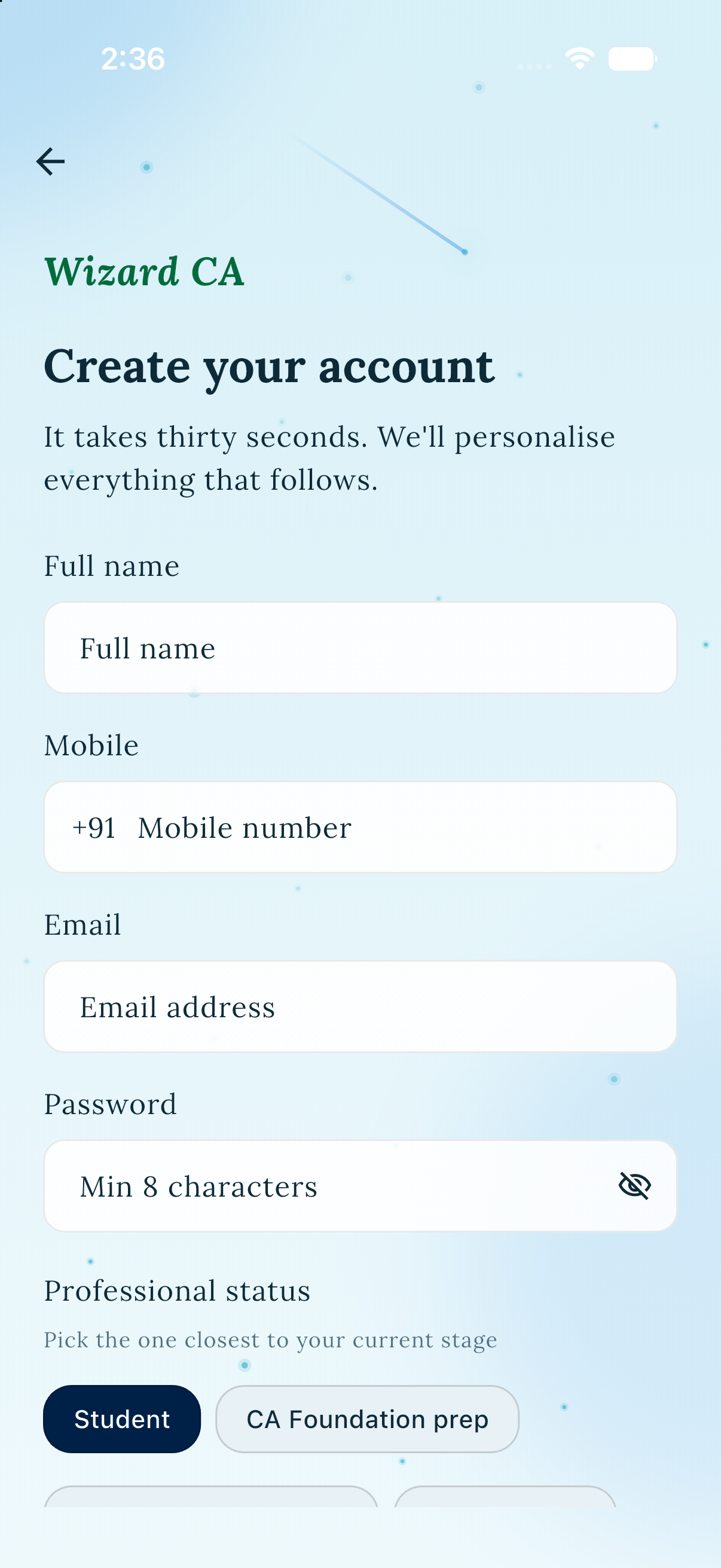
You need a real name (2 characters or more), a valid mobile (a 10 digit Indian number, with or without +91), a real email you actually check (disposable inboxes are rejected on purpose), and a password of at least 8 characters. The promo code is optional, and pre-filled if you arrived from a partner link. "I am" only tailors what you see next, pick Student if you are unsure.
"An account already exists" means that email or mobile already has a password, so sign in instead. Your account is active the moment sign up succeeds (no verification code), and you can Skip the paper picker for now.
Signing back in
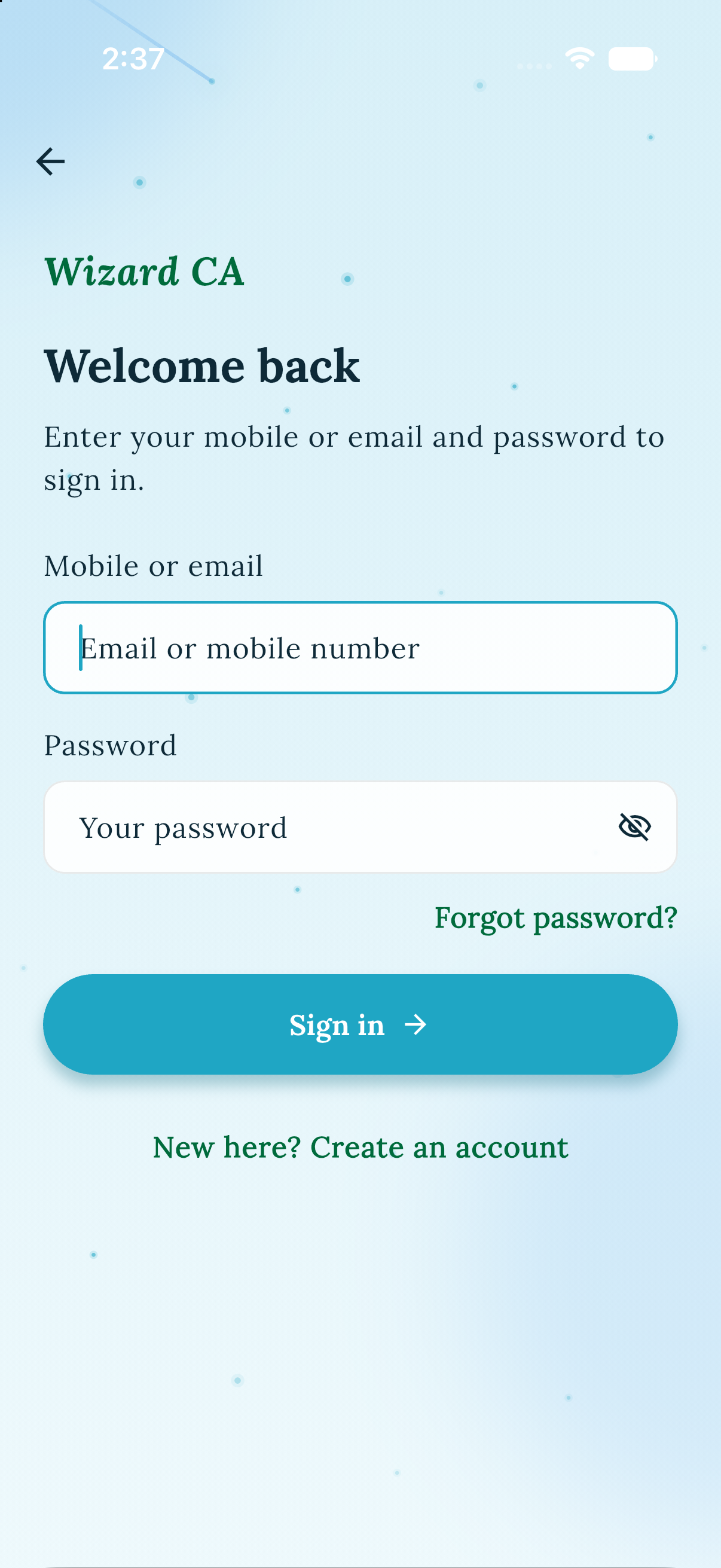
"Invalid login" stays vague on purpose: a wrong password and no account at all show the same message, so no one can probe who has an account. Check for typos, use the same email or mobile you signed up with, or just reset. Sessions last up to 30 days, there is no remember-me toggle, and no Google or Apple sign in yet.
Resetting a forgotten password
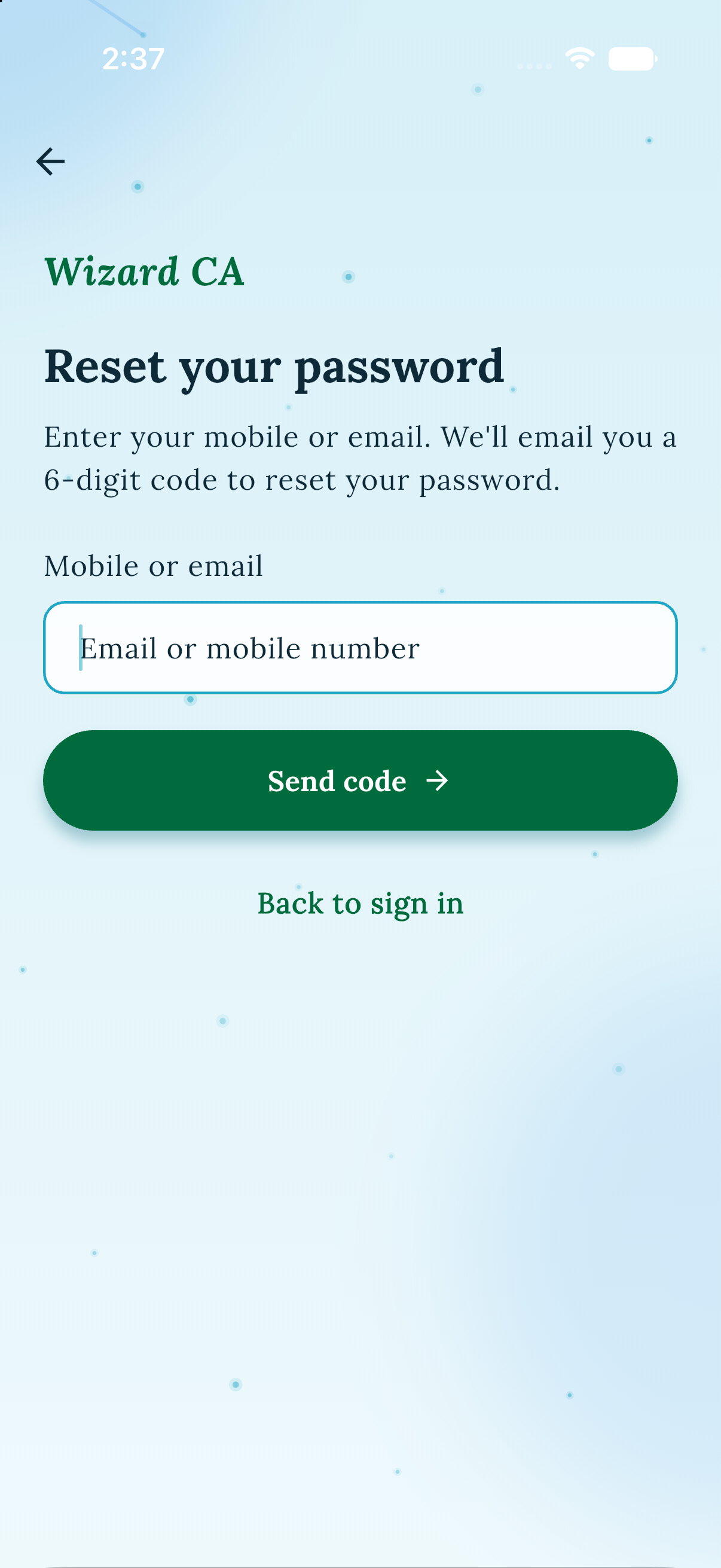
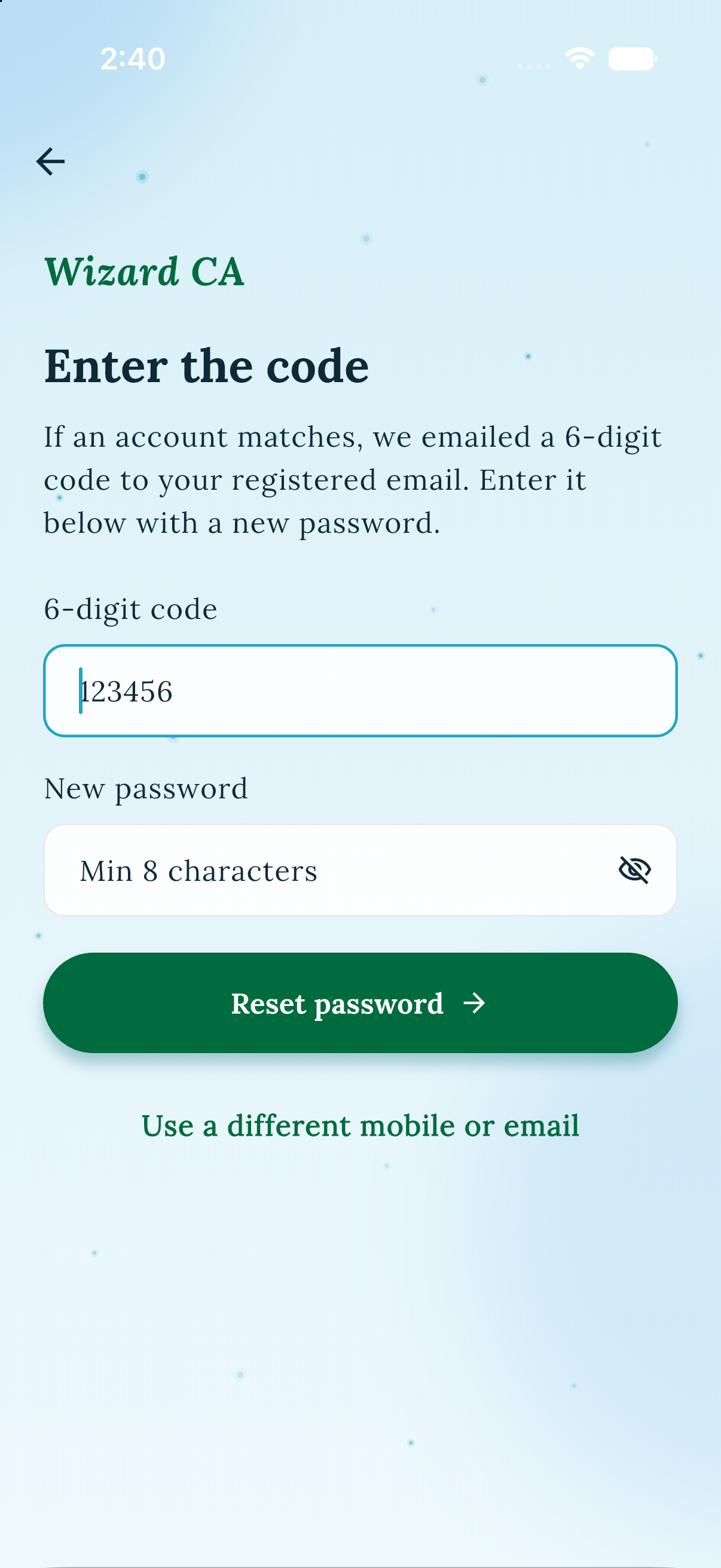
The 6 digit code always goes to your email, even if you started with your mobile number, so check your inbox, not your texts. It expires in 5 minutes, request a fresh one if it lapses. You will see the same success message whether or not an account exists (same privacy reason as sign in), so a missing code can simply mean there is no account on that email. The new password needs 8 characters or more, and resetting signs you out on every device.
The tour on Learn
The first time you open Learn, a short guided tour points out the main features. Skip and Finish do the same thing, both just mark it as seen. It is remembered in your browser, not your account, so a private window, a different browser, or cleared cookies will show it again.